
HEIC to JPG Converter
Convert iPhone HEIC photos to JPG, PNG or PDF — right here in your browser. Nothing is uploaded, so your photos never leave your device. Free, no signup, batch-friendly.
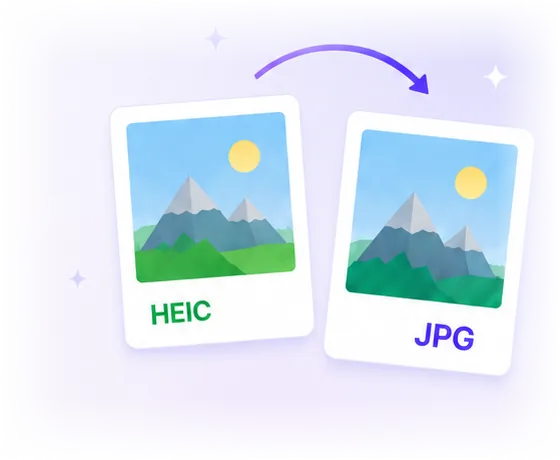
Why are iPhone photos in HEIC?
Since iOS 11 (2017), iPhones save photos as HEIC (an Apple HEIF image). It keeps the same quality at about half the file size of JPG — great for storage, but many Windows apps, websites and older programs can't open it. Converting to JPG or PNG makes the photo work everywhere.
Which format should I pick?
| Format | Best for |
|---|---|
| JPG | Everyday photos, uploads, sharing. Smallest size, works everywhere. |
| PNG | Maximum/lossless quality and editing. Larger files. |
| Receipts, documents or scans — combines photos into one file. |
FAQ
No. The conversion runs entirely in your browser using your device's own processing. Your photos never leave your computer or phone and are never sent to a server. That's why it works even offline once the page has loaded.
There's no fixed limit — you can convert a whole batch at once. Because everything runs locally, the only limit is your own device's memory, so very large batches may be slower.
JPG uses compression — keep the quality slider high (or choose PNG for fully lossless output) to keep photos sharp. HEIC itself is already compressed, so a high-quality JPG looks virtually identical.
Just use this page in any browser (Chrome, Edge, Firefox). You don't need the Microsoft HEIF/HEVC codecs or any app — drop the files and download JPG, PNG or PDF.
Yes — on the iPhone open Settings → Camera → Formats and choose “Most Compatible” to shoot JPG instead. Existing HEIC photos still need converting, which you can do here.